XAML previewers
XAML previewers are available in JetBrains Rider with the third-party AvaloniaRider plugin, as well as Visual Studio with the Avalonia for Visual Studio plugin. With a XAML previewer, you can view changes to your XAML code live as you work. We strongly recommend using one for the best development experience.
Enabling the XAML previewer
If you are new to developing with IDEs, here's how to enable the XAML previewer in Rider and Visual Studio.
- Rider
- Visual Studio
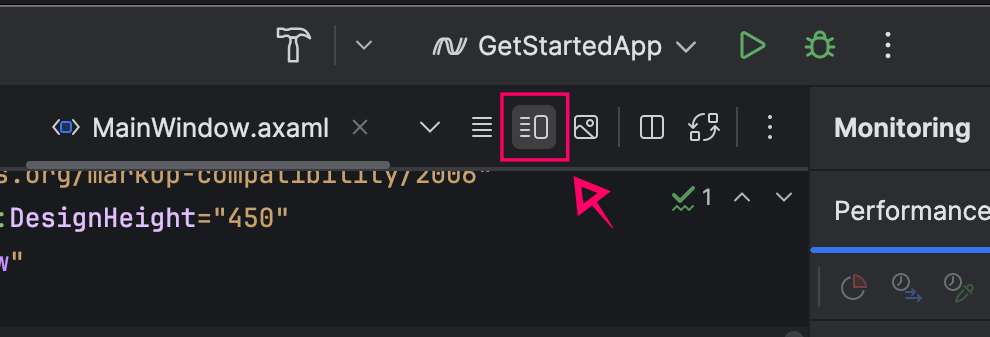
- In Rider, select a .axaml file from the top ribbon.
- On the right side of the top ribbon, click Editor and Preview.
- Build your project.
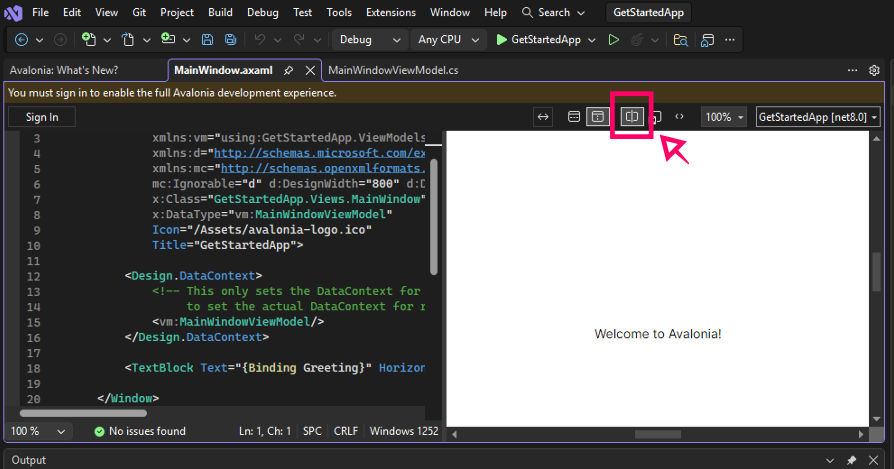
In Visual Studio, the XAML previewer is usually open by default. If it isn’t, follow these steps to enable it.
- In Visual Studio, open a .axaml file.
- Click Split View at the top of the editor window.
- Build your project.
Checking it works
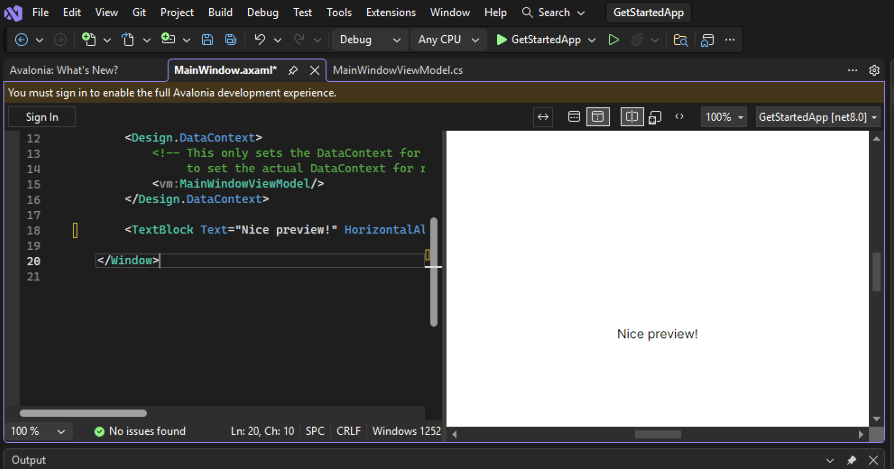
- Open any .axaml file. For this example, we’re going to use MainWindow.axaml from the default Avalonia template.
- Locate the
<TextBlock>...</TextBlock>XAML tag near the bottom. - Remove
{Binding Greeting}. Change it to any text, e.g., "Nice preview!" - You should see your text appear in the preview pane as you type.
tip
If the previewer is unresponsive to your changes, try building the project again.